

The colors we choose each day can influence how others see and perceive us; we even communicate through color. The clothes we wear, our makeup, a hat, and even the color of our glasses. All these choices shape our personality.
With a structured prompt, you can generate a complete and highly visual personal color and hairstyle analysis in 30 seconds with ChatGPT. Magic? No, the new Image 2.0 of OpenAI can help you to save more than $500 dollars. How? Uploading a clear portrait of you.
Why Color Analysis Is More Important Than Ever
Understanding your own color palette is essential in 2026, a fundamental skill in branding, design, photography, marketing, and personal style.
Choosing the right color palette can influence emotions and feelings, enhance visual storytelling, and boost confidence.
With AI-powered image tools, such as GPT or Nano Banana 2, color analysis can be achieved with the perfect colorimetry analysis prompt.
To maximize the effectiveness of the color analysis prompt for ChatGPT, I've divided it into several parts:
Prompt Color Analysis Trending for ChatGPT Image 2.0
Copy and paste this prompt and use it in Lorka AI with ChatGPT Image 2.0.
1. Color Analysis with Diagram
Color Analysis with Diagram Prompt 🟠
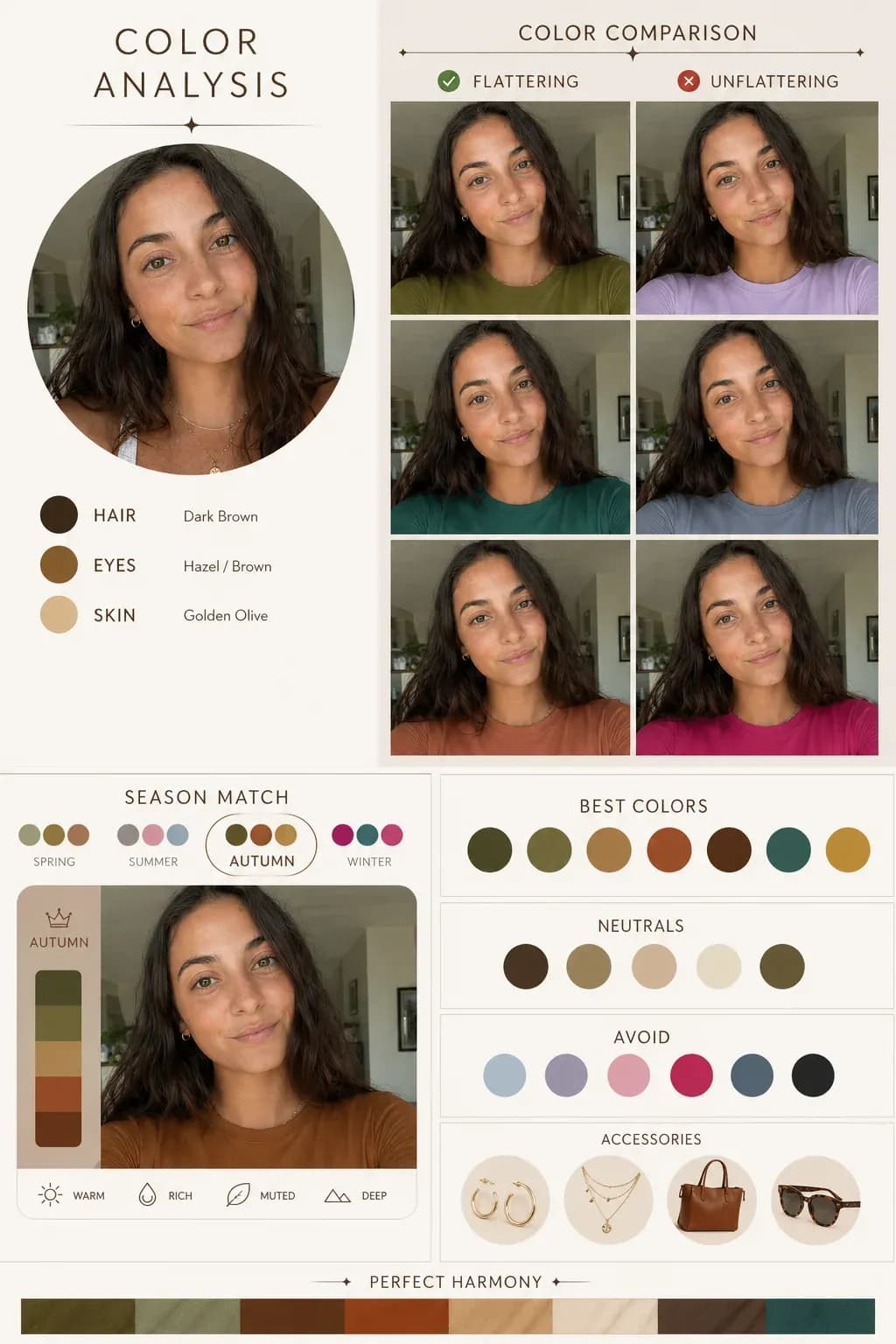
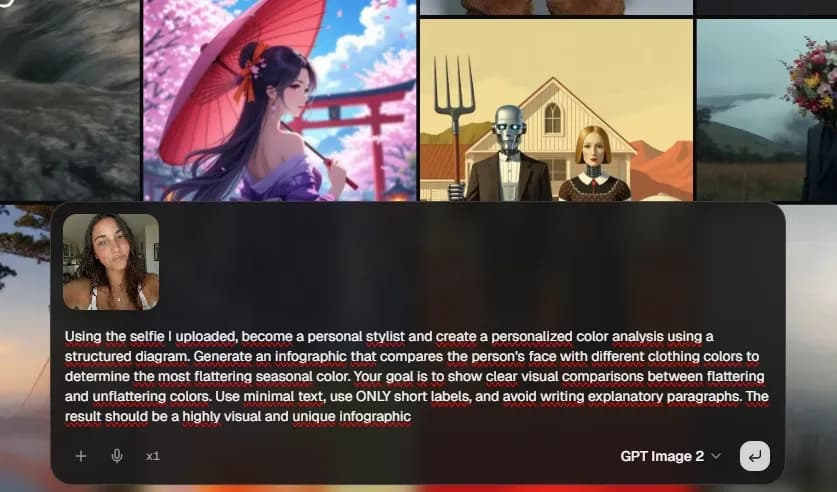
Using the selfie I uploaded, become a personal stylist and create a personalized color analysis using a structured diagram. Generate an infographic that compares the person's face with different clothing colors to determine the most flattering seasonal color.
Your goal is to show clear visual comparisons between flattering and unflattering colors. Use minimal text, use ONLY short labels, and avoid writing explanatory paragraphs. The result should be a highly visual and unique infographic.
➡️TRY THIS PROMPT⬅️
Here is the result:
If you want to know how something really looks on you in different colors and versions, use this prompt:
2. Side-by-Side Clothing Comparison
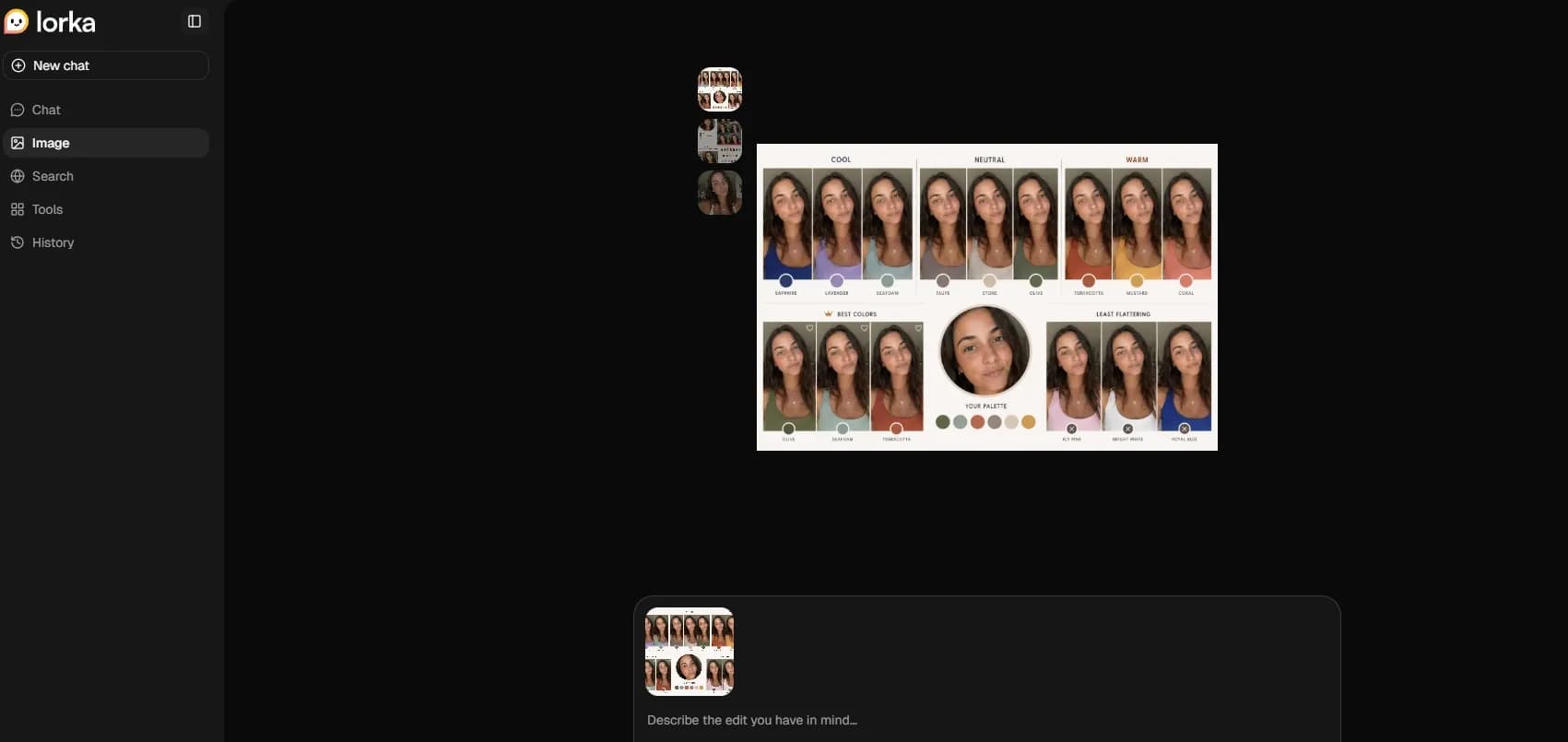
If you want to know how something really looks on you in different colors and versions, use this prompt:
Clothing Comparison Prompt 🔵
Use the selfie I uploaded and act like a professional stylist by creating a comparative infographic of personalized color analysis. Generate an image with the subject wearing different clothing colors to discover which shade best suits their skin tone, hair color, and eye color. Prioritize the visual aspect; place variations side-by-side for a direct color comparison. Use minimal and short labels to identify the colors, and don't include any long paragraphs of text.
➡️TRY THIS PROMPT⬅️
3. Hairstyle Comparison
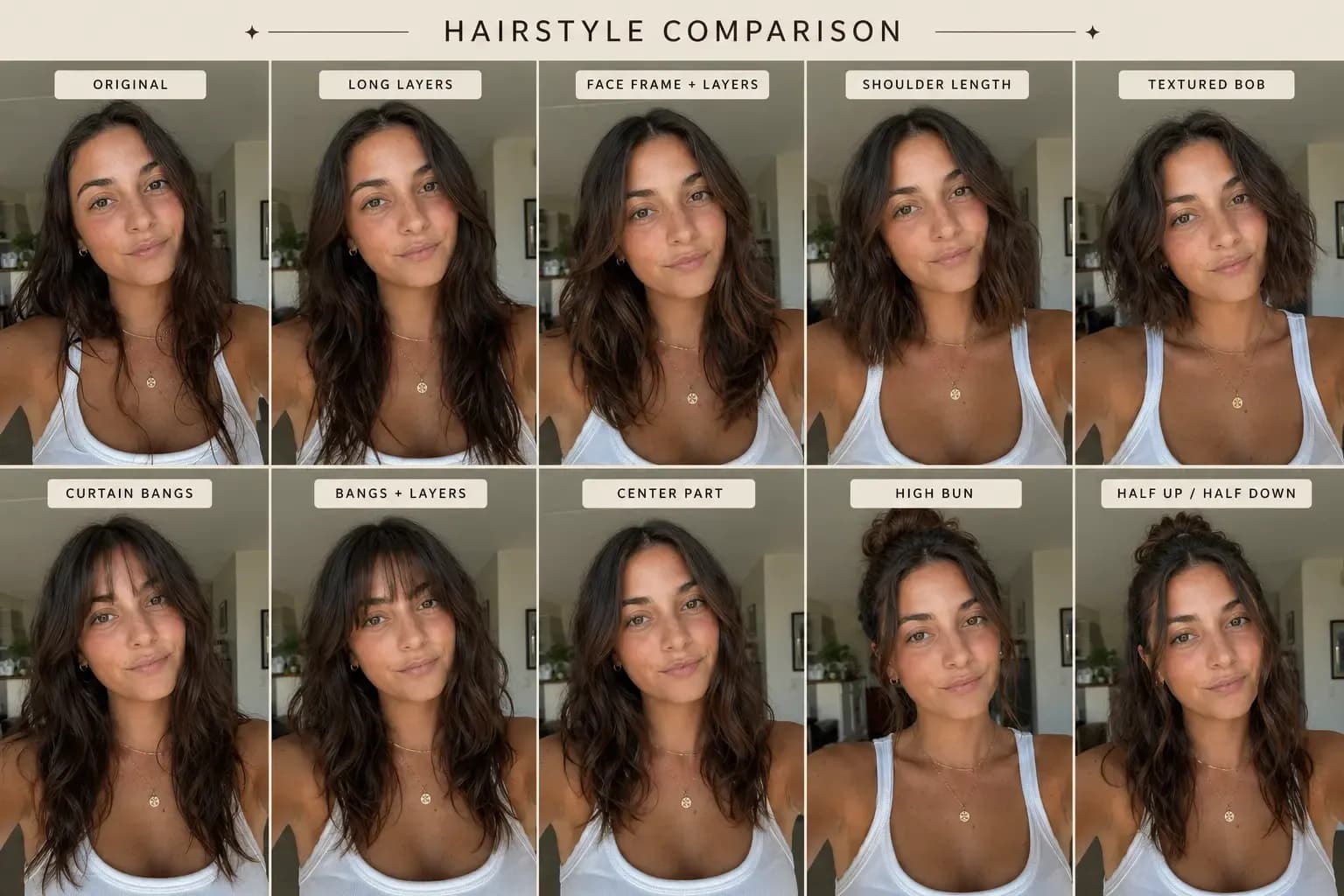
Now that you've identified the color that suits you best, we can use the same logic to start trying different hairstyles and decide on a haircut that's perfect for you. Use this prompt for analysis:
Hairstyle Comparison Prompt 💇🏻♀️
Using the uploaded portrait, act like a stylist and create a hairstyle comparison chart. Generate an image showing the subject with different hairstyles and lengths to better highlight their face and shape. Prioritize all visual aspects, placing the variations side-by-side for a direct comparison. Use short labels; do not include paragraphs of text.
➡️TRY THIS PROMPT⬅️
The AI Prompt for Your Free Digital Color Analysis with Dressing Your Truth
As we said, today, with a prompt, you can do everything, including a Free Color Analysis using specific instructions and uploading a photo and viewing the results.
Digital Color Analysis Prompt 🎨
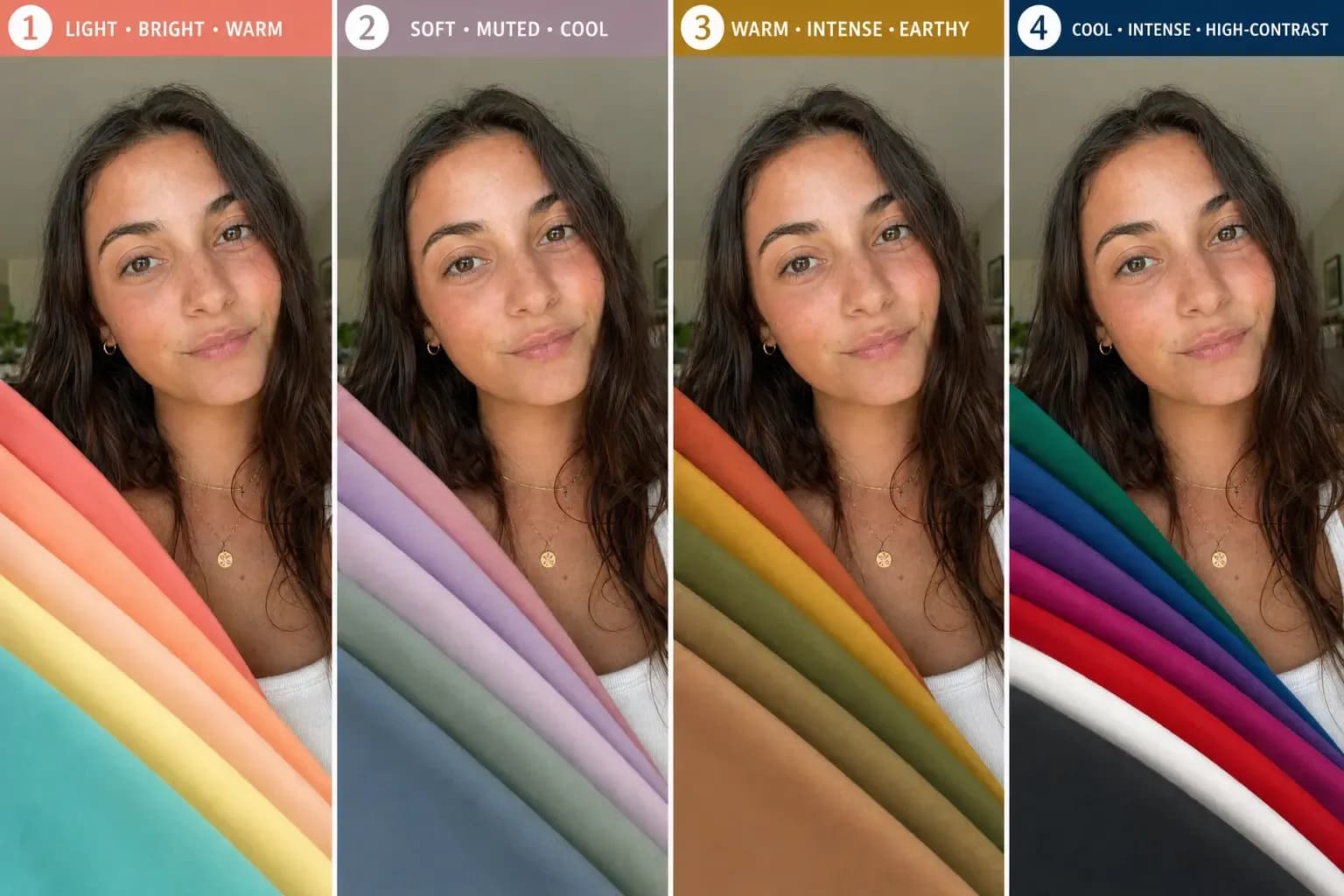
Using my photo as a reference, create a professional color image of me. Use the Dressing Your Truth color system to generate the result.
Show me dressed in palettes 1, 2, 3, and 4 with the same hair color (do not change my hair color) and everyday natural makeup for each palette. Layer and position all the colors of one palette over my shoulder so I can easily see the different shades. Use the correct DYT colors to allow me to evaluate which palette makes my skin look more radiant, my eyes appear brighter and more beautiful, and my shadows less pronounced. Use precise color palettes for each type:
Type 1: light, bright, warm (coral, peach, turquoise, light yellow)
Type 2: soft, muted, cool (dusty rose, lavender, sage, blue-gray)
Type 3: warm, intense, earthy (rust, mustard, olive, camel)
Type 4: cool, intense, high-contrast jewel tones (emerald, sapphire, royal purple, fuchsia, true red, black, white, charcoal). Keep the face clear and do not insert long text or paragraphs.
The features and proportions are exactly the same and include the types and tones next to each image for color reference.
➡️TRY THIS PROMPT⬅️
How to Use this Prompt Step by Step on Lorka
Using Lorka for AI Color Analysis is easy. Follow these steps and start your professional analysis:
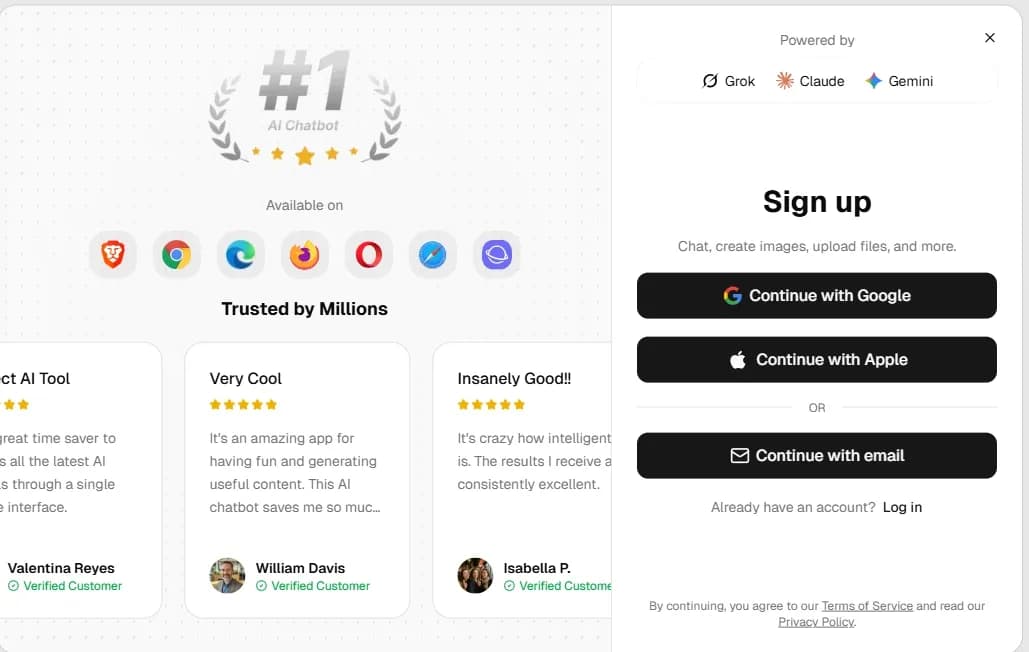
1. Create an account on Lorka AI
Create your account and start using Lorka today. You can log in with your Gmail account, and in a couple of seconds, your account will be ready to use.
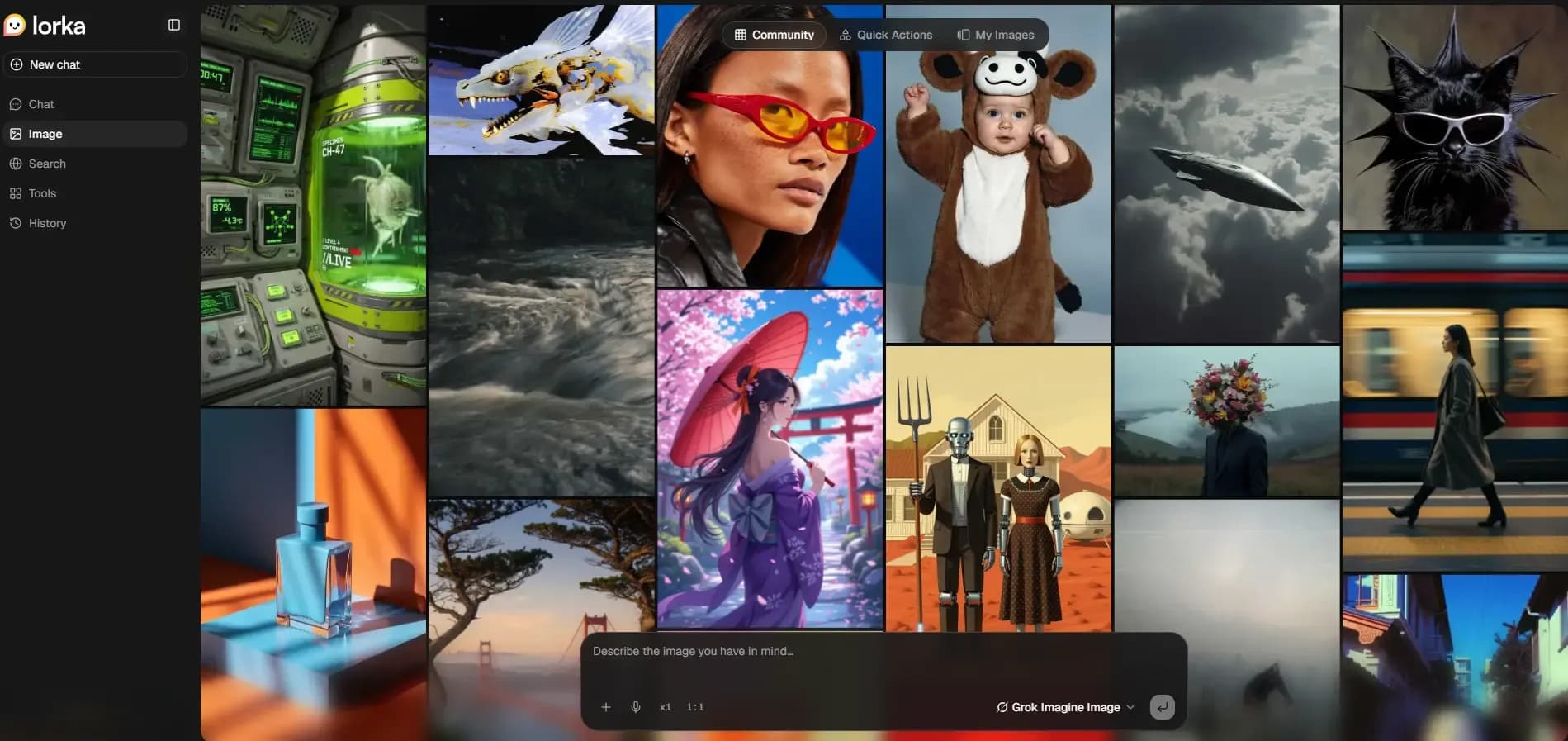
2. Open AI Image Tool Generator
In the left menu select “Image” to access the most powerful image tool.
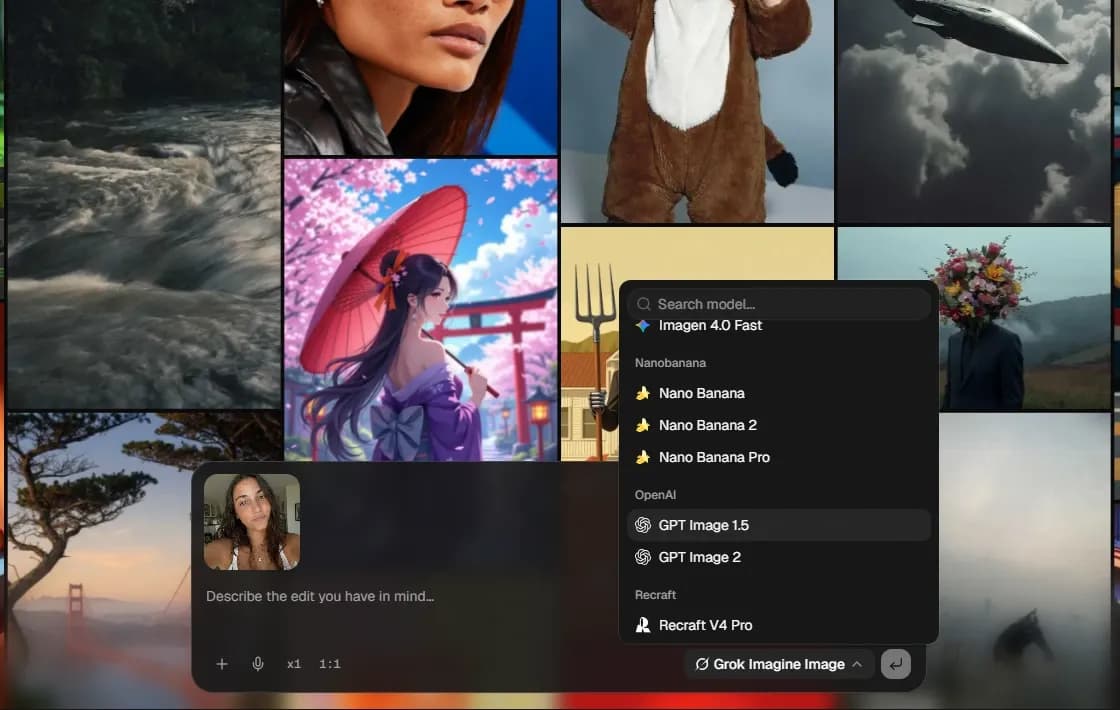
3. Upload your selfie and select a model
The third step is uploading your selfie images, and select the AI Image model that you want to use.
4. Using a prompt to see the results:
Why Use Lorka AI for Your Color Analysis Prompt?
In Lorka, you can use GPT Image 2.0 and other image models to get a real-world comparison of how each prompt performs in different AI tools, allowing you to achieve better results.
Lorka's AI Image Generator offers the option to use Image 2 from ChatGPT, Grok Image, Nano Banana 2, and other models like Flux.
➡️ With Lorka AI, you can
- Generate high-quality images and obtain a professional color analysis instantly
- Easily switch between models, thanks to our intuitive dropdown menu
- Save and reuse or improve prompts


Try the Color Analysis Prompt in Lorka AI
Upload your selfie, paste the color analysis prompt, and generate a visual palette with GPT Image 2: including your best colors, neutrals, jewelry tones, hair ideas, and colors to avoid.
Try Color Analysis in Lorka