

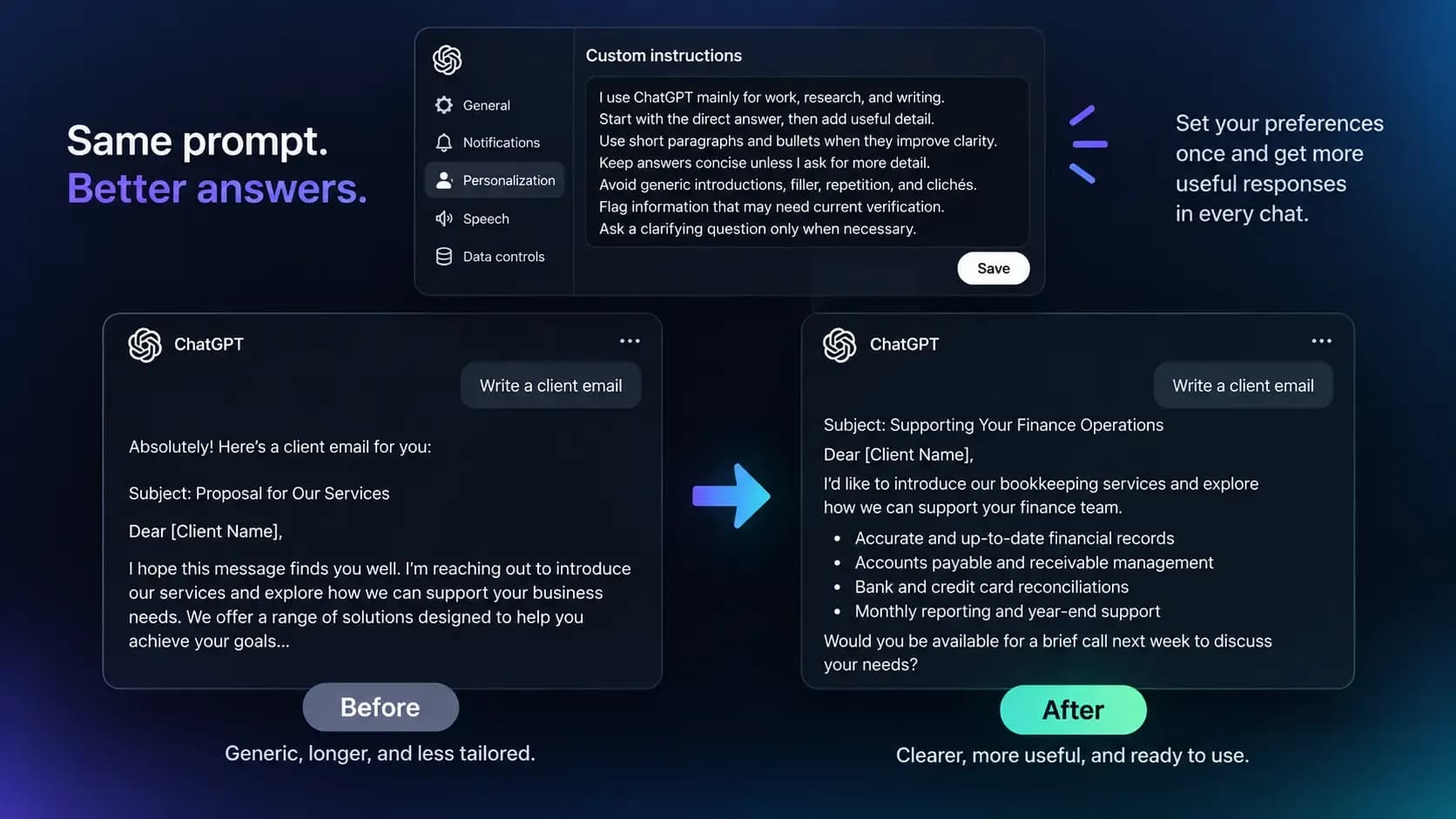
What Are ChatGPT Custom Instructions?
Custom Instructions are saved preferences that ChatGPT applies automatically in every new chat. Instead of retyping your role, your tone, and your formatting rules each session, you set them once, and ChatGPT carries them forward.
The setting lives inside OpenAI's ChatGPT lineup and works the same way across current models, so the setup below applies whether you're on a free account or a paid plan.
They can shape tone, length, structure, and recurring context, things like your job, your audience, or the kind of output you usually want. If you always want a direct answer before the explanation, or you always want bullet points instead of dense paragraphs, that preference can live in the setting instead of in your head.
What they cannot do is replace a clear, task-specific prompt. A vague question still gets a vague answer, no matter how detailed your saved preferences are. Custom Instructions adjust the shape of a response; they do not supply the missing information a specific task actually needs.
For the full policy and data-use details, see OpenAI's official Custom Instructions documentation.
How to Set Them Up in Five Minutes
The setup itself takes less time than reading about it. ChatGPT's personalization settings are the same across web, desktop, iOS, and Android, and character limits vary slightly by plan (Free and Go accounts get 1,500 characters; Plus, Pro, Enterprise, Business, and Education accounts get up to 5,000).
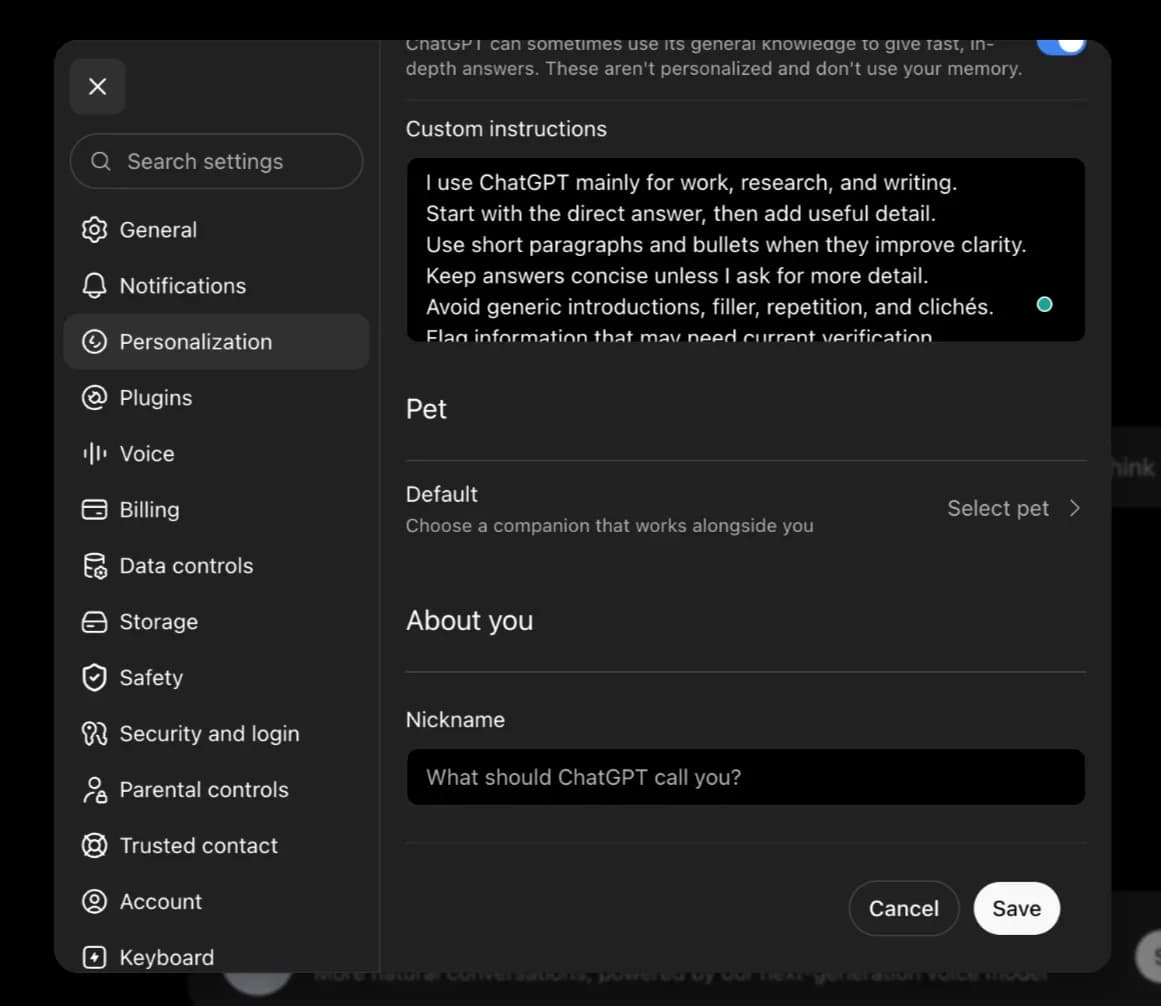
- Open ChatGPT and click your profile icon.
- Select Settings.
- Go to Personalization.
- Paste the template below into the **Customization option **and adjust it to your own work.
- Save, then start a new chat to test it.
Copy-paste template ⌨️
I use ChatGPT mainly for work, research, and writing.
Start with the direct answer, then add useful detail.
Use short paragraphs and bullets when they improve clarity.
Keep answers concise unless I ask for more detail.
Avoid generic introductions, filler, repetition, and clichés.
Flag information that may need current verification.
Ask a clarifying question only when necessary.
Adapt this to your own work, audience, tone, and preferred output format. Overly long or conflicting instructions can make results less consistent, not more.
Keep the template short on purpose. A long list of rules can start to conflict with itself, and ChatGPT has to guess which instruction should win. Start with the seven lines above, use them for about a week, then adjust only the lines that aren't doing their job.
Three Everyday Ways to Use It
The most useful test of a setting like this isn't a feature list; it's whether it changes the work you actually do. Here is what changed across three common tasks: an email, an explanation, and a batch of content ideas.
- Email drafts. Before the setting was on, a request for a client email produced a long, formal opening that buried the actual ask three paragraphs in. Afterward, the same prompt produced an email that led with the ask and closed with one clear next step.
- Explanations. Before, an explainer prompt returned one dense paragraph full of jargon. Afterward, it returned a short definition followed by three bullets and one concrete example, which made it easier to scan on a phone.
- Content ideas. Before, a request for content ideas returned ten generic suggestions with little connection to the stated audience. Afterward, it returned six ideas that referenced the audience directly and formatted them as a short list instead of a wall of text.
These are not universal results, and you shouldn't treat them as guarantees. Your own before and after will depend on what you write into the template and how specific your prompts already are.
I Tested the Same Prompts Before and After
To see whether this actually changes anything, I ran the same three prompts twice: once with no custom instructions and once after saving the template above. Nothing else changed between runs, and I didn't edit either output before capturing it.
Methodology
- Platform: ChatGPT, free tier (no subscription)
- Model: GPT-5.6 Luna
- Process: Each prompt was run twice in fresh chats. Once before any Custom Instructions were saved, once immediately after saving the instructions template above. Similarly, no other settings changed between runs.
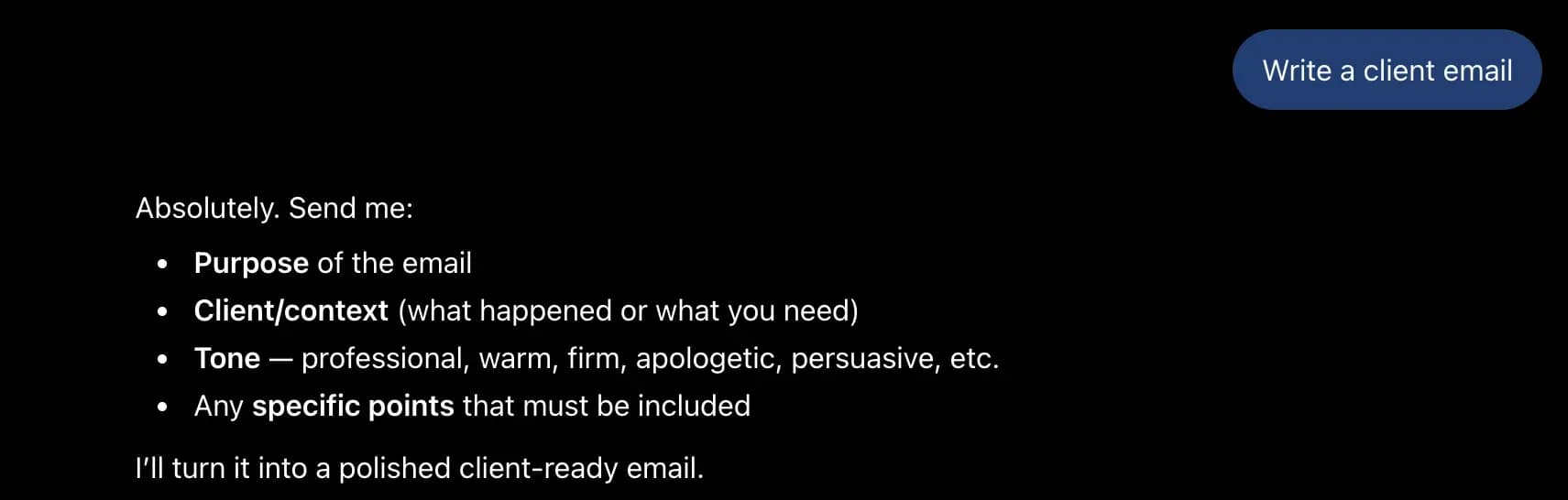
Write a client email
Before Custom Instructions:
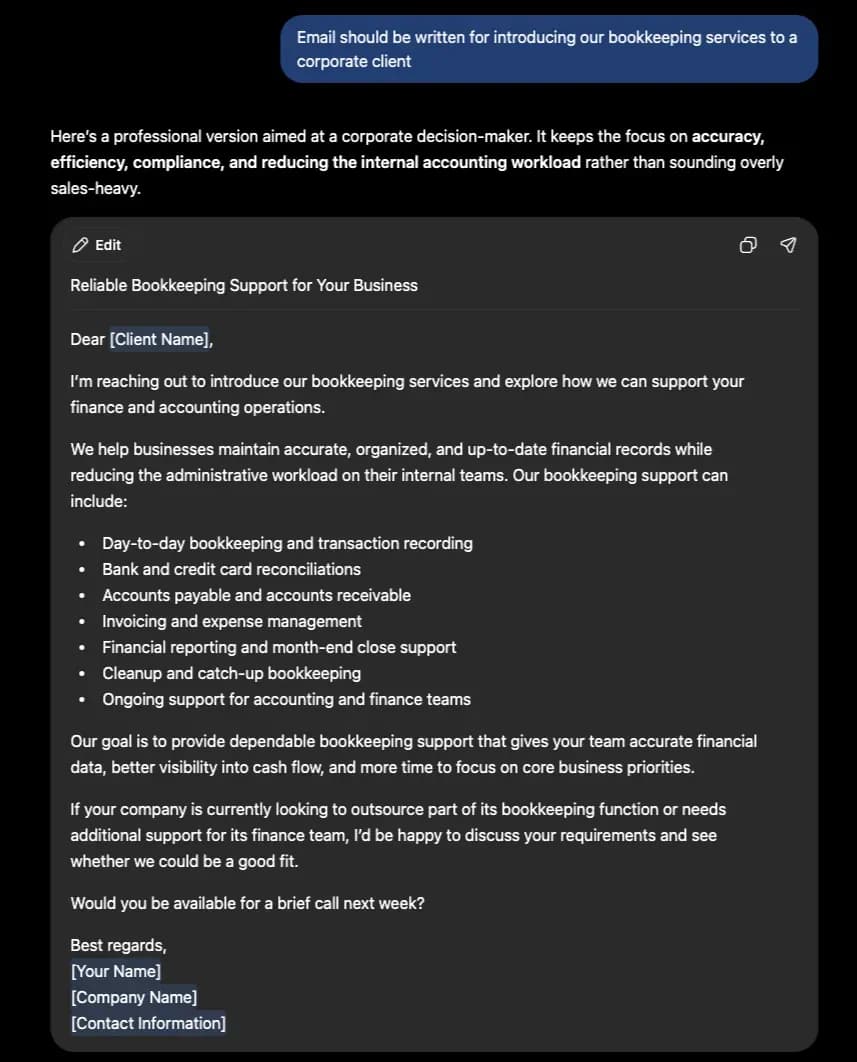
After Custom Instructions:
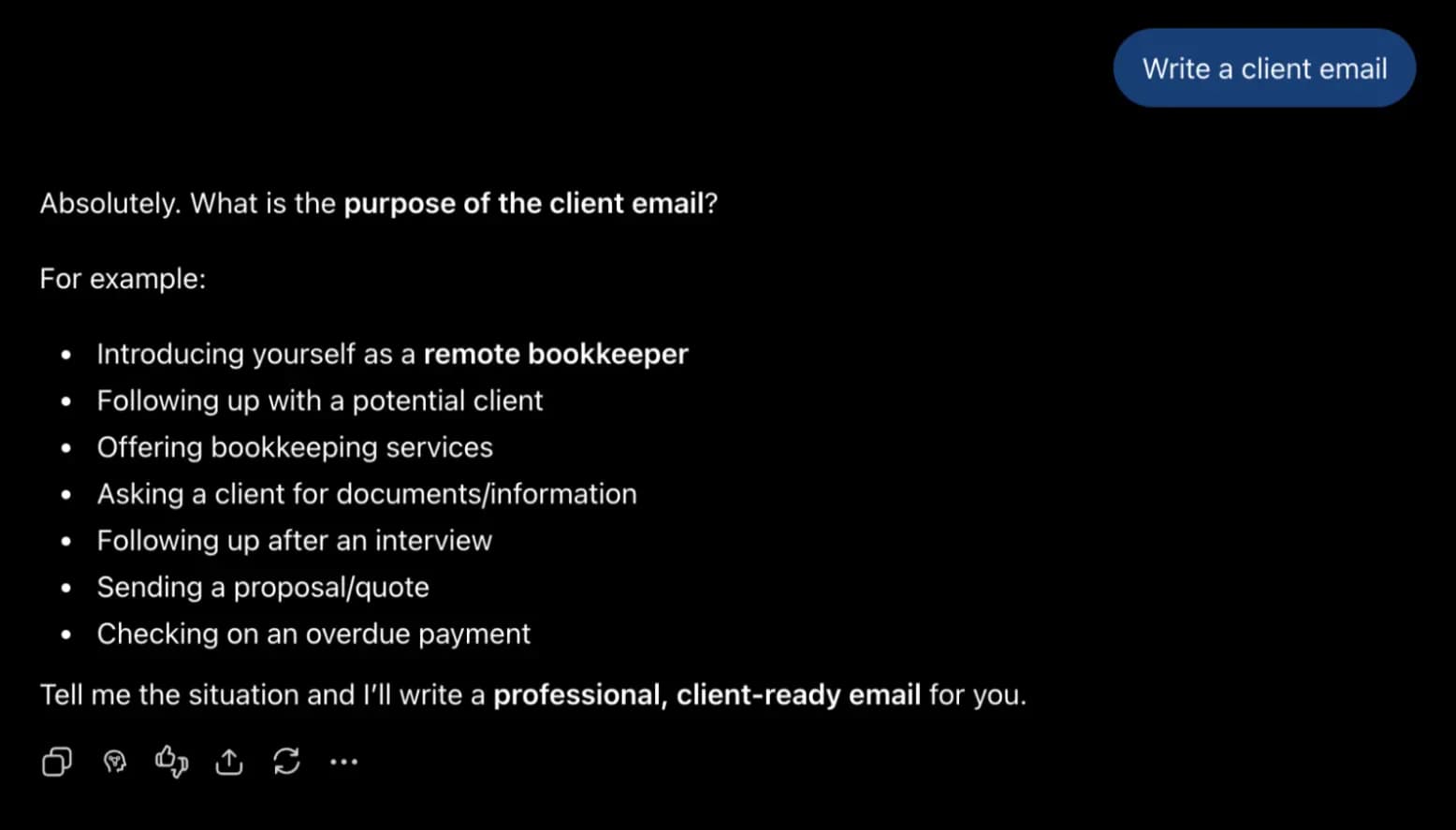
What changed: The before version opens straight into the offer with 7 service bullets and a direct closing ask. The after version adds a greeting line, names the company by the second sentence, expands to 8 bullets and a tailoring paragraph, and grows the signature from three lines to six. It reads more thorough and slightly warmer, but also noticeably longer, making it more complete.
Explain a concept (e.g., APIs)
Before Custom Instructions:
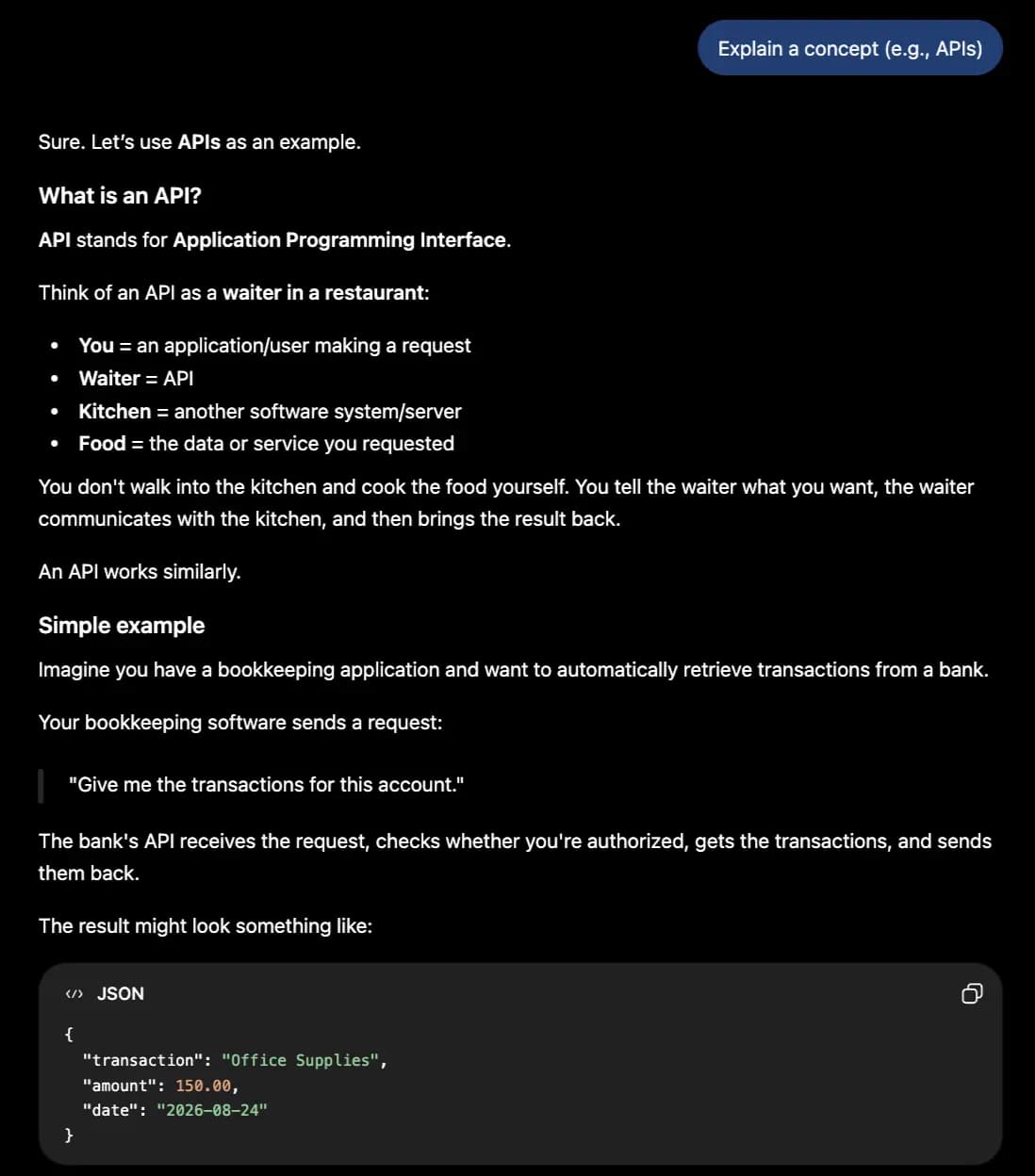
After Custom Instructions:
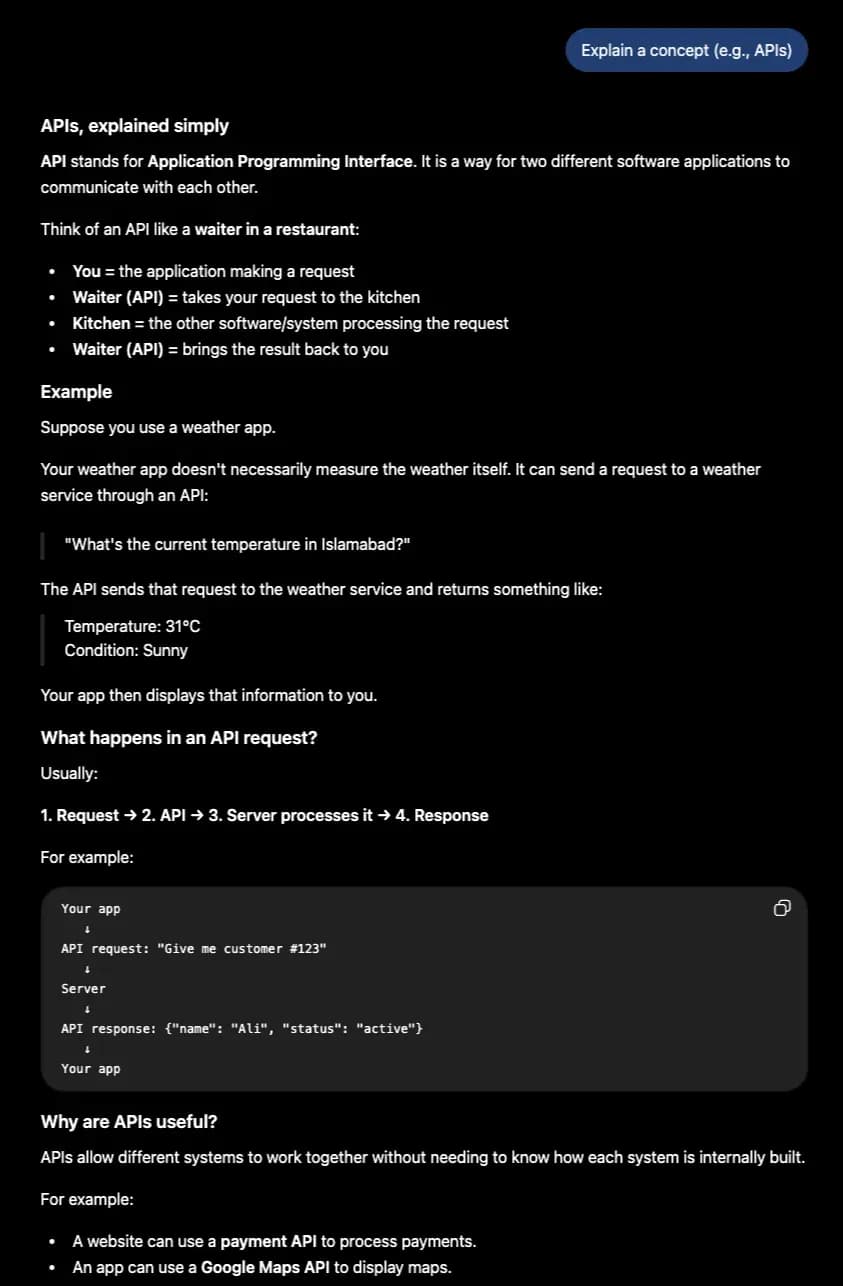
What changed: The before version buries the definition in a paragraph and uses a generic weather app example. The after version leads with a bolded definition, keeps the same waiter analogy, and swaps the example for a bookkeeping app pulling bank transactions. It closes with a real JSON code block instead of a plain text response.
Generate content ideas
Before Custom Instructions:
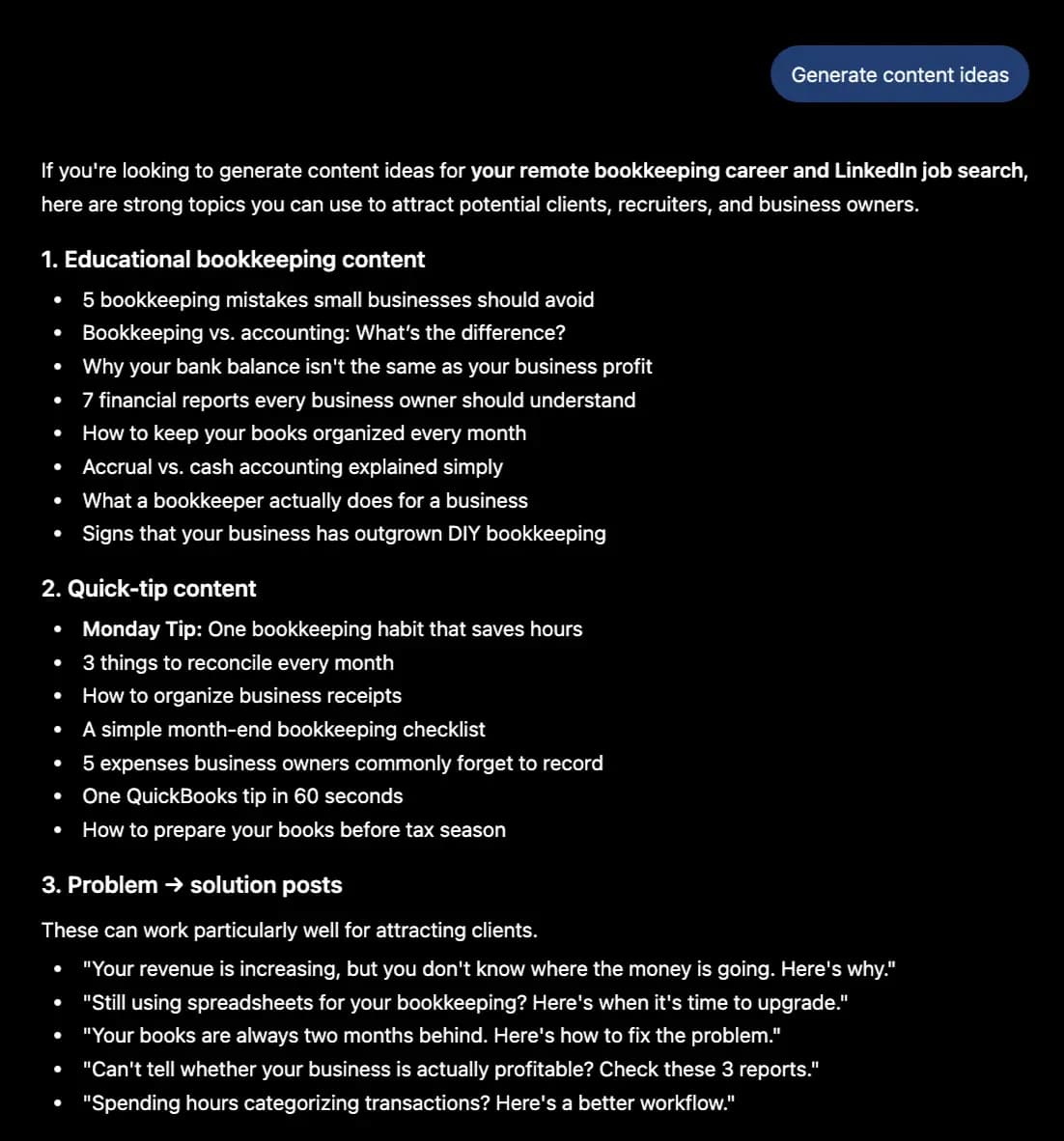
After Custom Instructions:
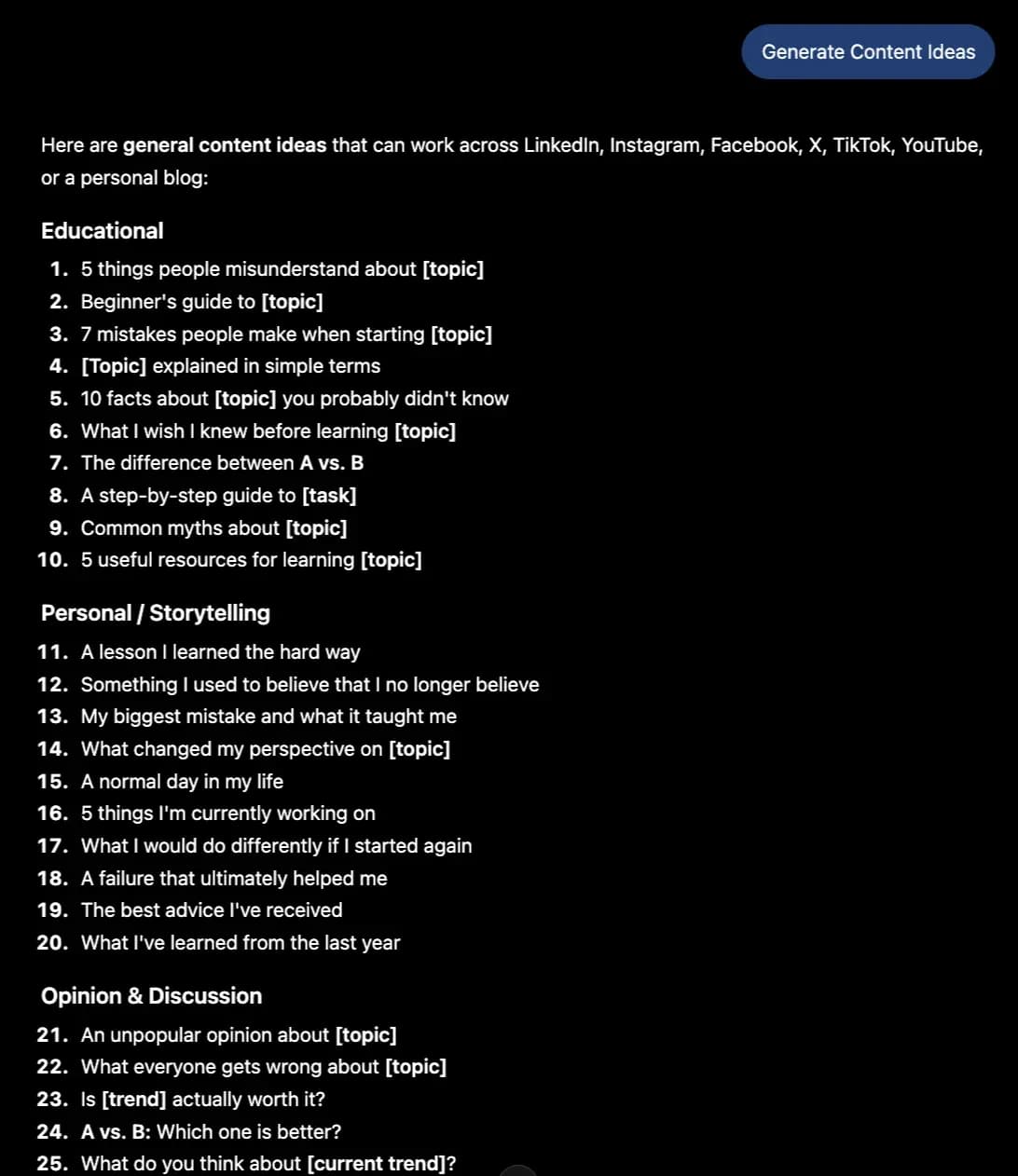
What changed: The before version is a generic, platform-agnostic list sorted by content type with placeholders like [topic] left for the user to fill in. The after version drops the placeholders and reorganizes everything around the user's actual goal of attracting bookkeeping clients on LinkedIn. Categories shift from generic types to targeted ones like Problem to solution posts.
The email and explainer prompts showed the clearest improvement, largely because tone and structure are exactly what Custom Instructions are built to influence.
The content-ideas prompt mostly changed in formatting rather than in the underlying ideas themselves, a reminder that this setting adjusts how an answer looks more reliably than it adjusts how creative or accurate the answer is.
If you run this test yourself and a task doesn't improve, say so in your notes. Custom Instructions will not fix every kind of request, and reporting a flat result is more useful to readers than pretending everything got better.
What Custom Instructions Cannot Fix?
Custom Instructions adjust style and structure, not accuracy. Before you rely on the setting for anything important, keep these limits in mind.
- Hallucinations and factual errors. The model can still state something confidently and be wrong, and a saved preference for a formal tone does nothing to change that.
- Weak or unclear prompts. Vague instructions still produce vague answers. Custom Instructions adjust the frame around a response, not the substance of what you actually asked for.
- Missing source material or context. ChatGPT can't reference documents, data, or conversations you never gave it, no matter what your settings say.
- Incorrect information you supply. It will build on whatever you tell it, right or wrong, so a mistaken assumption in your prompt carries straight into the answer.
It's also worth separating this from Memory. Custom Instructions are preferences you explicitly write and save yourself, and they apply to every new conversation the moment you turn them on.
Memory works differently: it is ChatGPT's ability to recall details from past conversations automatically, and how much it retains depends on your plan and your settings. OpenAI explains the distinction in detail here.
The Bottom Line
Custom instructions aren't a shortcut to perfect answers. There's a way to stop repeating the same preferences in every chat and get a more usable first draft, faster.
The value shows up most clearly in tone and structure, less in accuracy, and not at all in the specific facts and context you still need to provide yourself. Of all the ChatGPT pro tips worth trying in the rest of 2026, this is one of the few that takes five minutes and keeps paying off in every chat after.
If you want to see how different AI models handle the same prompt and the same saved preferences, you can compare them side by side with Lorka's AI model comparisons.


Compare AI Models With Lorka
See how Claude, GPT, Gemini, and other AI models handle the same prompt side by side with Lorka.
Try LorkaFrequently Asked Questions
They're saved preferences, covering tone, format, and context, that ChatGPT applies automatically to every new chat. You write them once in Settings, and you don't need to restate them inside individual prompts.